Getting Started using Docker
UX Designer version 6.0 comes with support for build using Docker containers. This introduces an easy and flexible way to install dependencies and tools for desired target CCpilot displays.
CrossControls docker repository is based on Ubuntu 22.04/20.04 and contains the installed Yocto SDKs for CCpilot display devices, including Qt open-source SDK. It can be used from command line or with Qt Creator 9+ that supports building with docker devices, see: https://doc.qt.io/qtcreator/creator-adding-docker-devices.html
Install
Installing Docker:
curl -fsSL https://get.docker.com -o get-docker.sh
sudo chmod +x get-docker.sh
sudo sh get-docker.sh
Add ccs user to docker group:
sudo usermod -aG docker $USER
Enable and disable Docker service:
sudo systemctl disable docker
sudo systemctl enable docker
A password is required (ccs user password is default)
Restart VM
To find what SDK images that are available for CCpilot devices go to CrossControl Docker Hub.
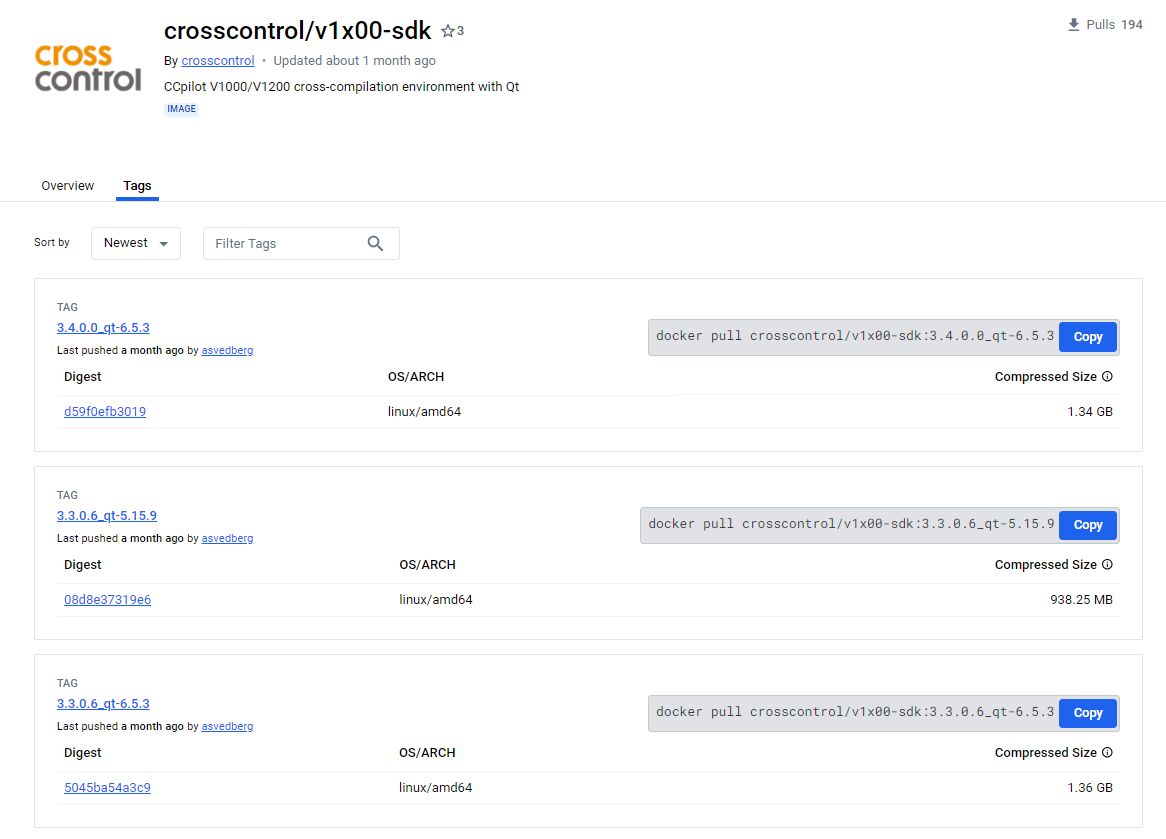
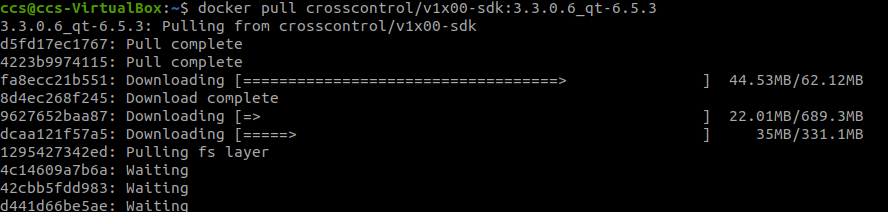
To install the docker sdk into your build environment a tagname is required. The tag describes CCLinux and Qt versions installed. To pull the image, use:
docker pull crosscontrol/v1x00-sdk:tagname
Compile Qt applications using docker from command line
It is possible to compile Qt applications directly from the command line using the installed docker image. This is useful for automated build systems or if you want to avoid using an IDE.
Navigate to your Qt project folder:
cd /path/to/your/qt/project
Run the docker image with volume mapping to your current directory:
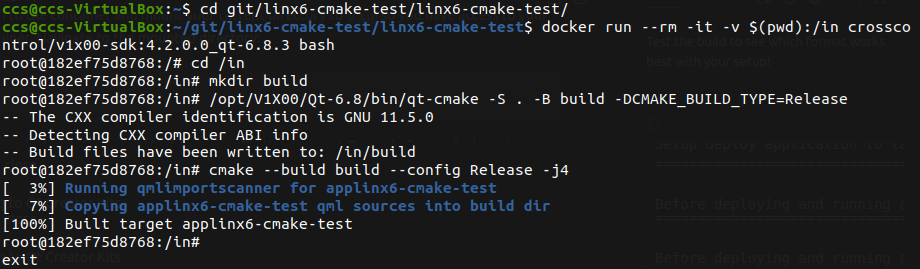
docker run --rm -it -v $(pwd):/in crosscontrol/v1x00-sdk:4.2.0.0_qt-6.8.3 bash
This will open a bash session to the container and mount your current directory to /in so you have access to your project files inside the container. Navigate to the mounted directory:
cd /in
You can then use cmake or qmake to configure and build your application as usual. Example for cmake based projects:
mkdir build
/opt/V1X00/Qt-6.8/bin/qt-cmake -S . -B build -DCMAKE_BUILD_TYPE=Release
cmake --build build --config Release -j4
Press CTRL+D to exit the docker bash session when you are done building your application.
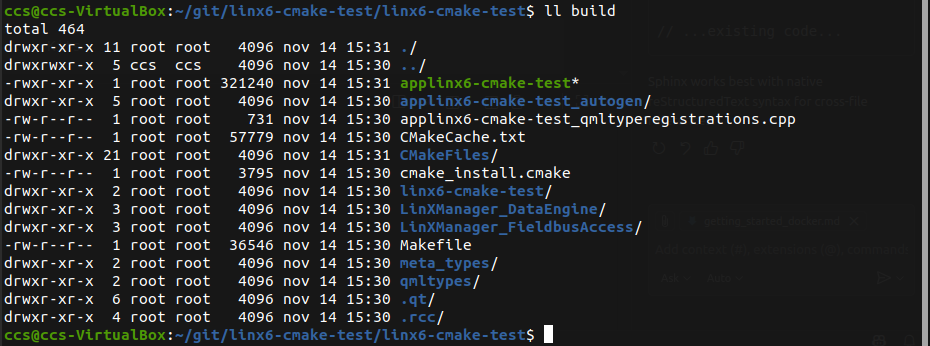
The compiled binaries will be available in the build folder of your project directory on the host machine.
Setup Qt Creator to run with Docker
Add remote device by navigating to Qt Creator Devices and click Add…
Edit → Preferences... → Devices
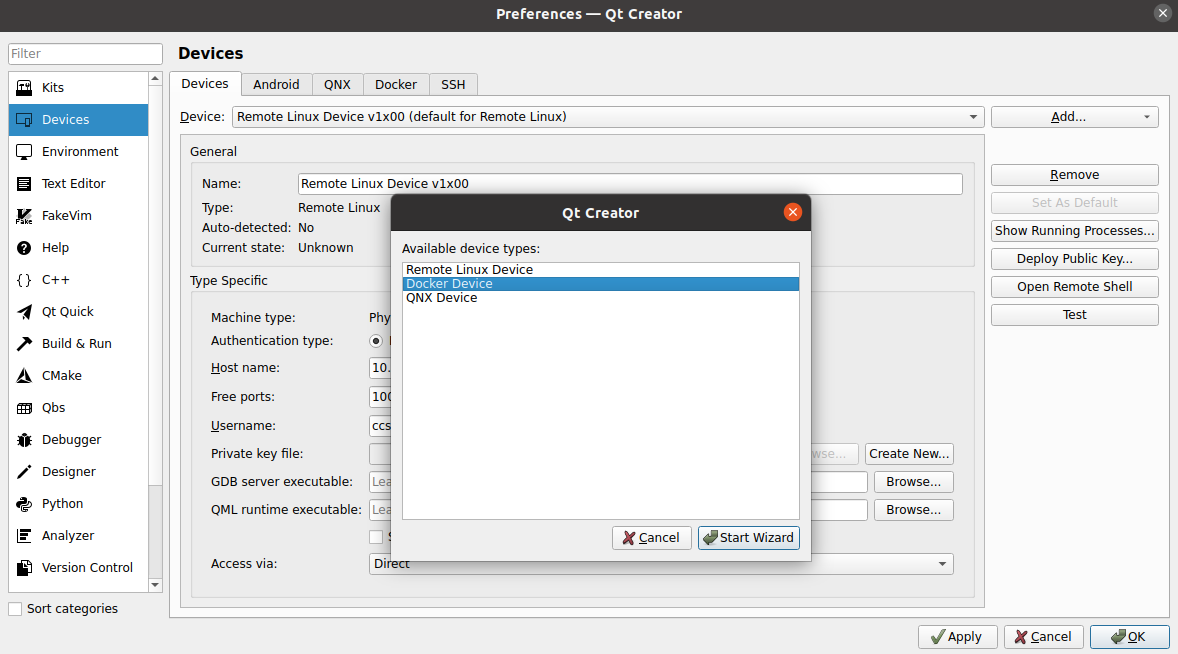
Choose Docker Device and press Start Wizard:
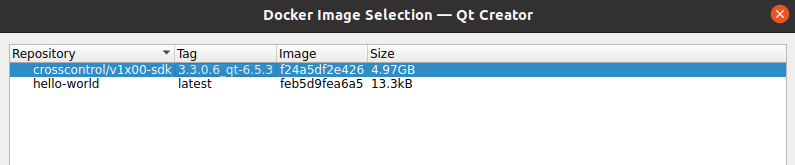
Select the installed docker sdk and press Ok:
Scroll down and press Auto-detect Kit Items and all build-kits and environment settings will be setup as needed by the docker image.
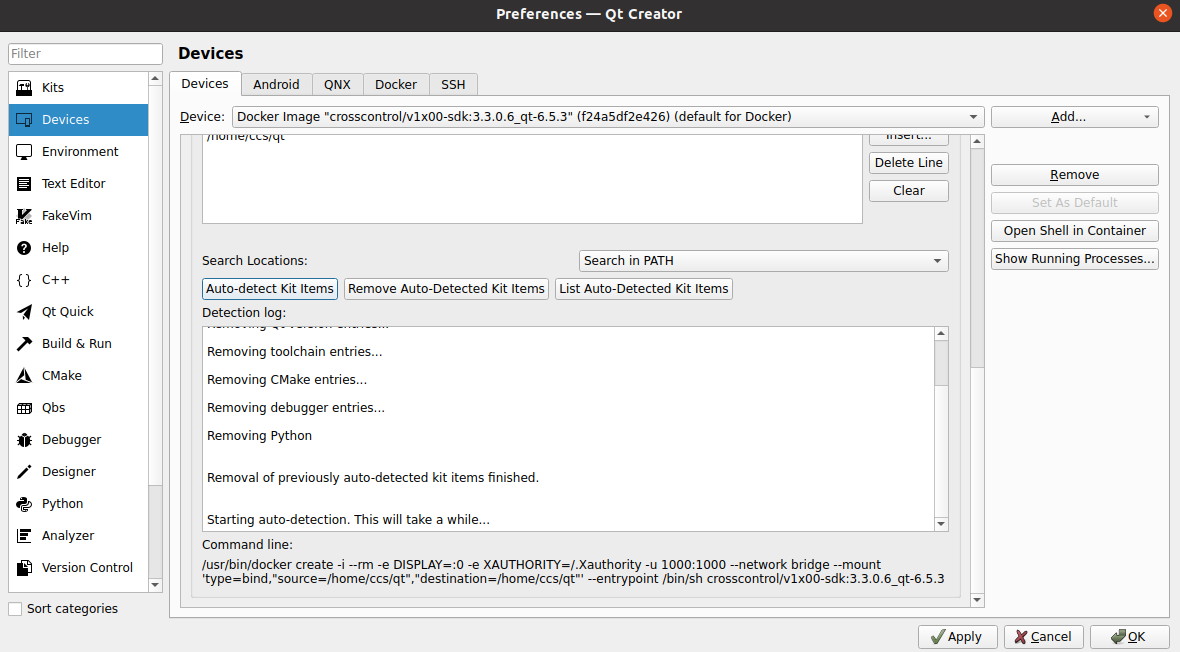
Press Apply and then Ok to close.
Validate setup by navigating to Qt Creator Kits
Edit → Preferences... → Kits
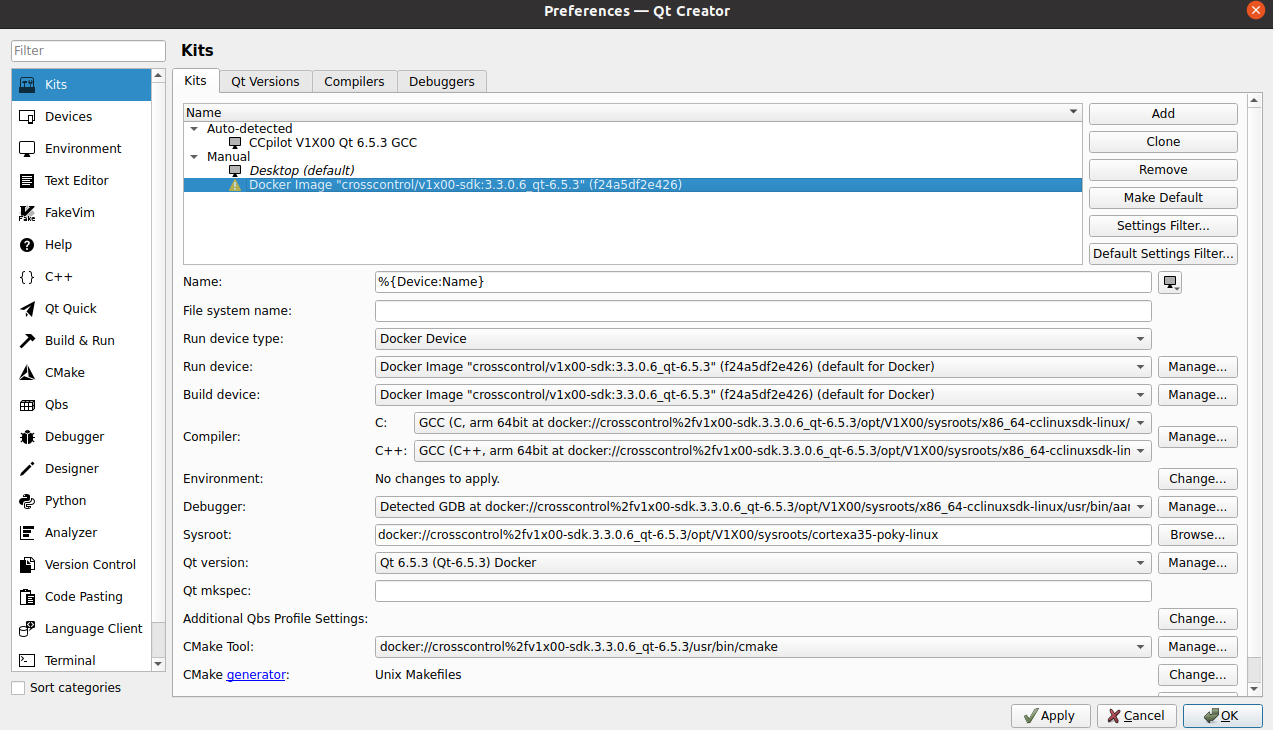
Make sure that the correct complier and debugger for the docker image is used, and set Sysroot to docker://crosscontrol%2fv1x00-sdk.4.2.0.0_qt-6.8.3/opt/V1X00/sysroots/cortexa35-poky-linux.
Press apply and OK to close.
Next configure in Project Settings to use clangd to get intelisense to work properly with Docker build-kit.
Navigate to Clangd
Projects → Project Settings → Clangd
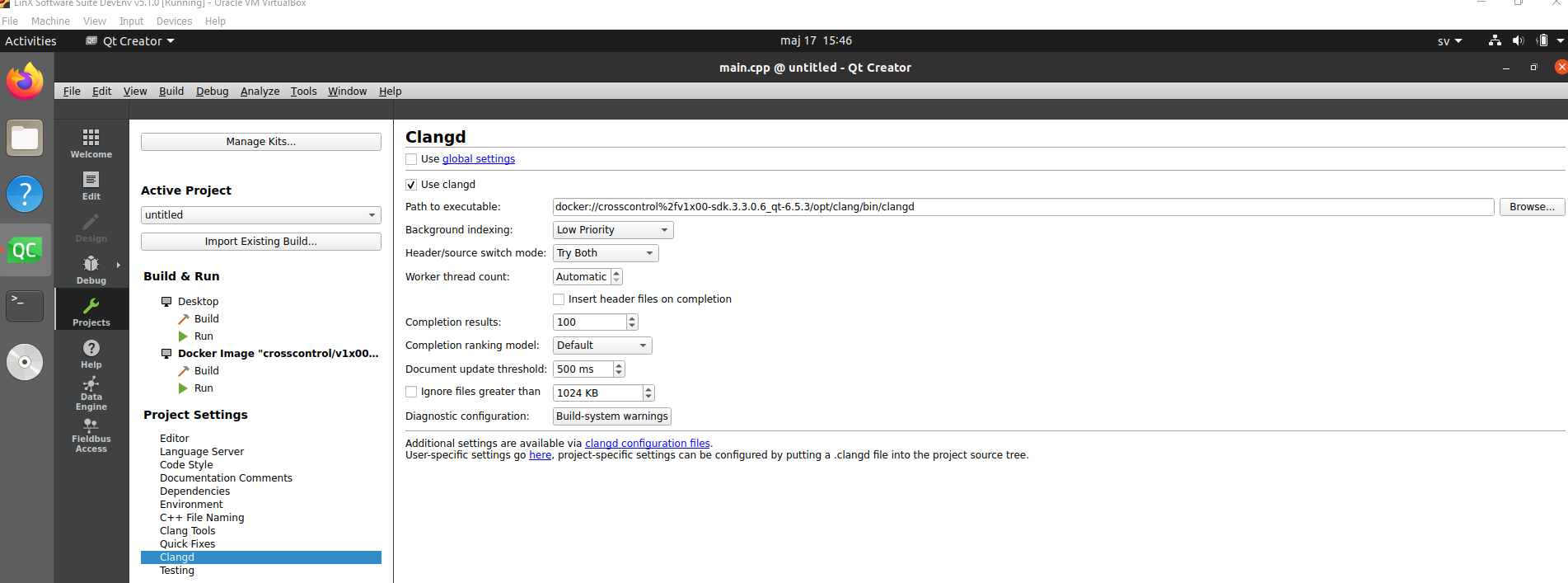
Select Use clangd instead of global settings.
Set Path to executable: navigate to the installed docker version of clang as shown in the image.
You will need to have created a project if you cannot access Project Settings it, see here.
The installed build-kit is now available for application builds for your device using cmake (qmake not supported in Qt Creator and Docker. For qmake builds the Debian SDK installation is required described here). To depoly to target with docker build-kit, see here.